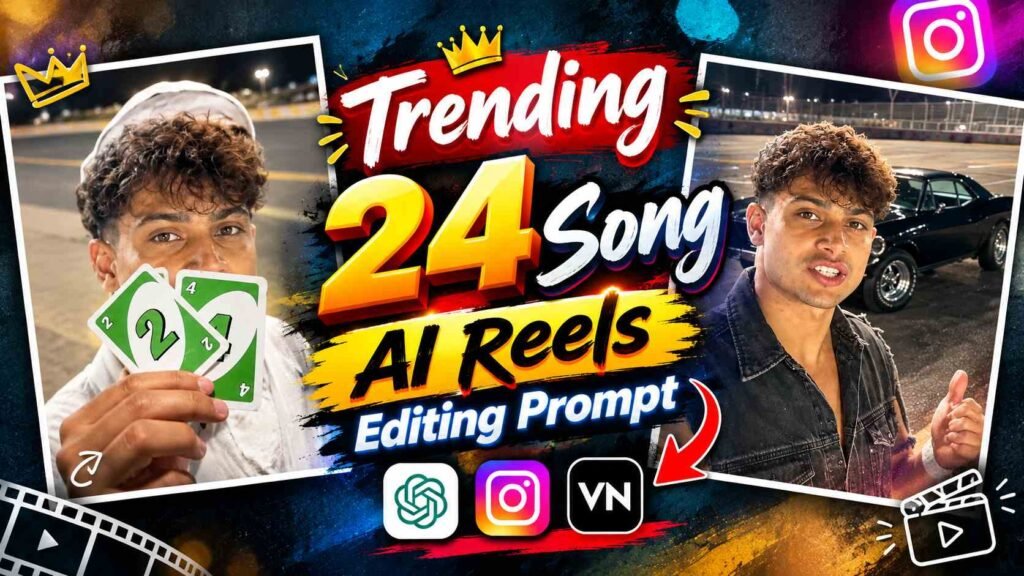
24 Song Ai Video Prompt – These days, various types of AI-generated videos are rapidly going viral on Instagram Reels, and the Trending 24 Song AI Video Editing is also attracting attention. The concept of this video is quite interesting. Initially, a person is seen showing UNO cards in front of the camera. Then, a stunning black sports car appears behind him in the video, and the person points towards the car. This scene change, camera movement, and cinematic presentation give the video a unique look. If you want to create a similar AI video with your own photo, you can use Google Flow. To do this, download the reference video provided on this website, upload a clear photo of yourself, and use the secret prompt below. This way, you can try creating a video inspired by this trend without shooting it yourself.
What is Trending 24 Song AI Video?
Trending 24 Song AI Video is an AI video editing concept that uses scenes, person movements, and camera style from a reference video to create a new video. The highlight of this trend is the display of UNO cards followed by the appearance of a black sports car and a person pointing to the car. Showing these scenes in the correct order in the video makes the presentation more engaging. You can try creating a similar video using Secret Prompt in Google Flow with your own photo and reference video. This doesn’t require an expensive camera or a separate location to shoot the video. Both boys and girls can use their own photos. However, the final video will depend on your photo, the instructions provided, and the AI’s generation capabilities.
How to Add Reference Video and Photos to Google Flow?
First, go to the Reference Video Download option provided in this article and save the video to your phone. Ensure the video is downloaded in good quality and the scenes are clear. Next, open Google Flow and select the option available to generate the video. Upload a clear photo of yourself, with your face clearly visible and not too blurry. Then, add the downloaded reference video using the Reference option. This will provide the AI with context about the scene in the video, the person’s actions, and camera movement. After adding both references, use the Secret Prompt below. Keep in mind that Google Flow’s interface and available features may vary, so use the on-screen options to add photos and videos. If an option doesn’t allow you to add a video reference, the process is not guaranteed to be completed without that feature.
Trending 24 Song AI Video Editing Prompt
In this section, you’ll find both a Reference Video and a Secret Prompt, which can help you begin the process of creating a Trending 24 Song AI Video with your photo. First, download the Reference Video below. Then, add your clear photo and the downloaded video as references to Google Flow. Now, copy and paste the Secret Prompt into the Prompt box and start video generation. The instructions in the prompts help the AI understand what kind of scene and movement to create in the video. Don’t forget to add the actual links to the Reference Video and Secret Prompt on your website so users can use them without hassle.
Reference Video Save Here
SAVE REFFERENCE VIDEO
Save this video and use it as a Reference Video in Google Flow. This reference provides the AI with context for the scene and movement in the video.
24 Song AI Video Editing Prompt
After adding the reference video above and your photo to Google Flow, copy and use this Secret Prompt. For best results, use the instructions in the prompt without any modifications.
How to create your own AI video with Google Flow?
After adding the reference video and your photo, paste the secret prompt into the Google Flow prompt box. Before starting the creation, review the available settings and instructions. If you’re given the option to select the video length, frames, or other options, adjust them accordingly. Generate the video and wait for the process to complete. Once the video is ready, carefully review your face, ensure the UNO Cards scene is well-formed, and the black sports car is in the correct position. Also, check the person’s hand movements, the moment the car is pointed at, and the camera movement. If you notice any flaws in the face or any scene, you can try again by changing the photo or making the necessary adjustments to the instructions. After downloading the final video, use it in the appropriate frame for Instagram Reels. Keep in mind that the AI doesn’t always replicate the reference video exactly, so some variations may appear.
Wrapping Up
If you want to try the trending 24-song AI video editing trend with your own photos, you can start with Google Flow. The process involves downloading a reference video from a website, then adding your clear photo to Google Flow, and generating a video using Secret Prompt. The UNO Cards and Black Sports Car scenes seen in the reference video are hallmarks of this trend. When using your own photos, ensure clear faces and good photo quality. Once the video is complete, review it thoroughly, make necessary corrections, and then share it on social media. The right reference and clear instructions can help achieve good results, but the final video’s appearance will depend on the AI’s ability to generate the video.

I’ve Been editing photos and videos for over 5 years. Here, I share Lightroom Presets, Ai Photo Editing Prompts, Vn Templates, and easy editing tutorials so you can give your photos and videos a professional look. Welcome to the world of creative, high-quality editing