Everyone loves taking editing and posting photos but capturing a great photo requires not only a good device but also good editing skills. If you’re facing challenges due to a lack of a good device or editing knowledge but are still very interested in photography then you’ve come to the right place. This website offers numerous tutorials and information related to photo editing. Today’s article is also about photo editing and I’m going to tell you about editing photos using the Lightroom app. You probably already know how easy it is to edit photos with the Lightroom app. People can easily edit any type of photo using the Lightroom app. This is because it has a preset feature which allows anyone to easily edit any photo based on that preset in a very short time. Therefore in this article we are providing Lightroom app presets with iPhone filters. With these presets, you can apply iPhone filter-like colors to any photo with just one click.
Detail Of iPhone Filter Lightroom Presets
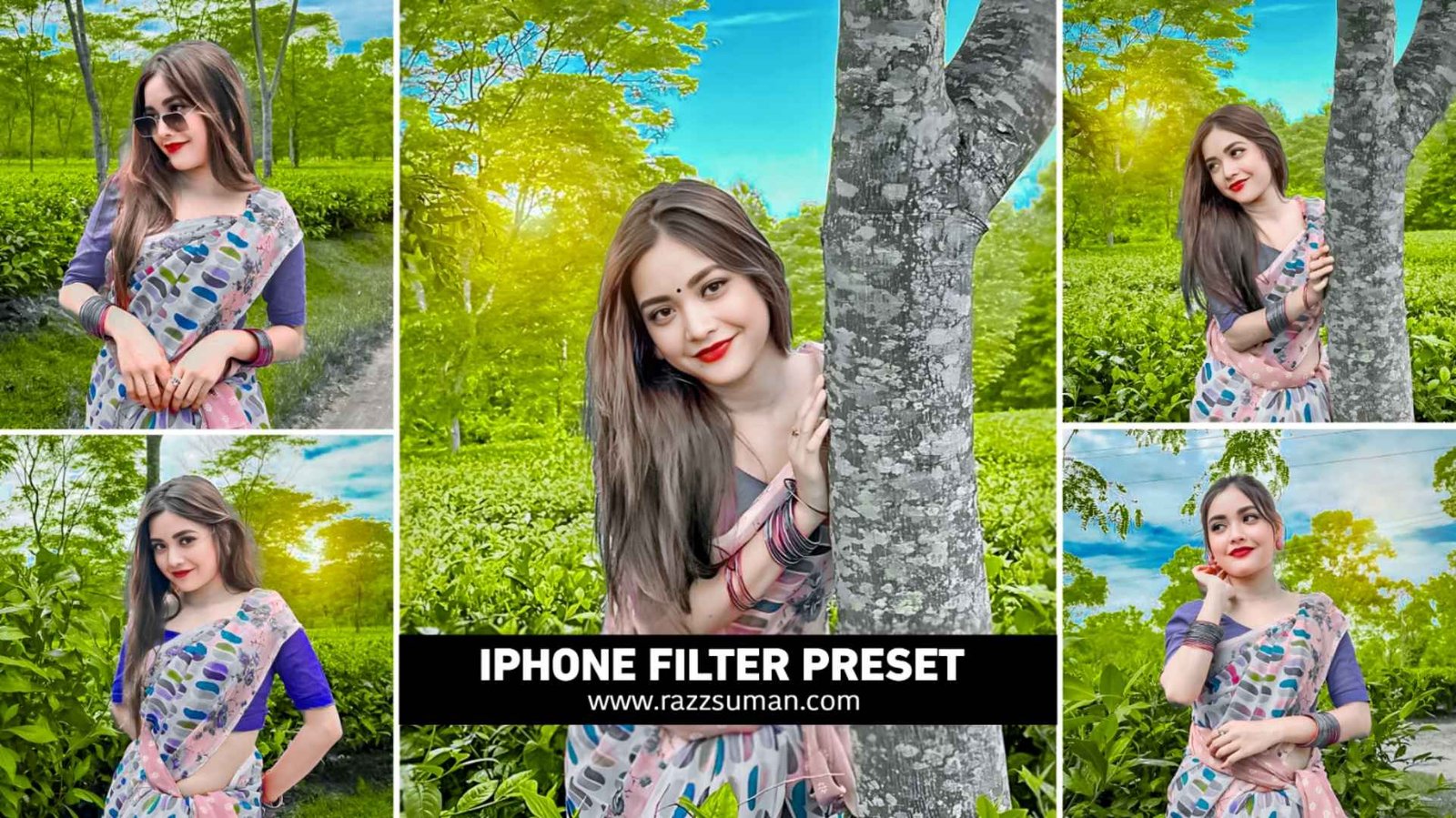
You no longer need to buy an expensive iPhone to get that iPhone-like photo look, because with this Lightroom preset, you can easily give any photo the same look using your Android phone. We have shown five sample photos as thumbnails. I clicked all the photos with an Android phone and applied Lightroom presets to give them an iPhone like look. So, you can get an idea of how amazing this iPhone preset is. If you still don’t believe it, we have also included before and after photo samples in this article that you can look at to understand. You will need to edit this type of DNG preset by copying the preset settings in the Lightroom app. It’s not the case that this iPhone preset will only work on outdoor photos. This preset will work very well on both outdoor and indoor photos. If there is a slight difference in color you can manually adjust it using the editing tools provided in Lightroom to correct the colors in the photo. In addition, it will edit the face very well.
Difference Between Dng And Xmp Presets
If you’ve ever edited photos with Lightroom, you know that presets can be used to edit photos. However there are two types of presets Xmp and Dng. The method for using each type of preset for photo editing is different. Dng presets are typically measured in megabytes (Mb), while Xmp presets are in kilobytes (Kb). Dng presets can be added directly to the Lightroom app, and their settings can be copied to edit your photos. This is not the case with Xmp presets. Xmp presets need to be added to Lightroom’s preset tool via a file. Only then can you use them to edit your photos. The iPhone preset included here is in Dng format. That’s all for now. In this article we’ve only covered Dng presets. We’ll try to provide information about Xmp presets in a future article.
Iphone Preset
How To Use iPhone Filter Lightroom Presets
To give any photo an iPhone-like look, having a preset is essential. All you need to do is save the preset we’ve provided to your device. After saving, select the preset in your gallery and share it to the Lightroom app by clicking the share button. Also share the photo to which you want to apply the iPhone filter-like look. Next, let’s learn step-by-step how to edit photos using presets and by copying their settings.
- First, open the Lightroom app.
- Now, select the preset that you shared from the gallery.
- Click on the three-dot icon in the top right corner and then click on copy settings.
- Now, select all the tools that are visible there, such as Profile, Color, Light, Masking, Color Effect, etc., by checking the boxes next to them.
- Select the photo you added from the gallery.
- Then, click on the three-dot icon on the right side again and this time select the Paste setting.
- As soon as you paste the settings, Lightroom will edit your photo.
- You can save the photo by clicking on the share button above.
Conclusion
Friends, in this article, we have told you about photo editing using the Lightroom app. We have also provided information about the best Lightroom presets and iPhone filters. This article explains in detail how you can give any photo an iPhone-like look using iPhone presets. We have provided some information about both Xmp and Dng presets for Lightroom which can be used to easily edit photos. Even after explaining all of this if you’re still unable to edit the photos or are facing any problems please feel free to ask us in the comments section. Alternatively, you can connect with us on Instagram.
FAQ
1. What Is Lightroom Presets?
Ans. – Lightroom is an excellent photo editing app created by Adobe. With it, we can easily edit any type of photo. This app can be used to edit all kinds of photos. Whether you want to do color grading or blur the background this app can handle it. It’s particularly well-known for its color grading capabilities.
2. Do Lightroom Presets Really Edit Photos?
Ans. – Yes, we can indeed edit photos easily with Lightroom presets. There are two types of presets Xmp and Dng and the method of editing photos with each type is different.
3. Will The iPhone Preset Actually Work?
Ans. – Yes, the iPhone presets we’ve provided in this article truly allow you to give your photos an iPhone-like look with just one click.
4. Even Beginners Ban Edit Photo using Lightroom app?
Ans. – Anyone can easily edit photos using the Lightroom app. Lightroom is often the first app that comes to mind when it comes to photo editing. Lightroom presets are best suited for beginners.
5. Is It Better To Edit Manually Or With Presets?
Ans. – It depends on you. If you have a good understanding of photo editing in Lightroom you can do manual editing. Otherwise you can apply a preset and then make manual adjustments.

I’ve Been editing photos and videos for over 5 years. Here, I share Lightroom Presets, Ai Photo Editing Prompts, Vn Templates, and easy editing tutorials so you can give your photos and videos a professional look. Welcome to the world of creative, high-quality editing