Lightroom 4k 8k 16k Presets – People may buy the best smartphone or DSLR camera to click better photos. But unless we enhance our photo i.e. HD. Our photos do not look good at all because in every smartphone or DSLR camera our photos are clicked with some degree of blur. Many people try to make their photos HD through editing. There are many photo enhancer apps or AI tools with the help of which people make photos HD, but there are some such apps and AI tools in which instead of becoming HD, the photo gets worse. Talking about editing apps, everyone uses Remini App to make their photos HD. But in Remini App our entire photo gets spoiled. After enhancing the face completely changes. How about if I tell you that now you do not have to use any photo enhancer app or AI tool. Yes, in today’s new article we are sharing with you a preset to make your photo HD from Lightroom itself, with the help of which you can enhance your photo to 4k, 8k, 16k. The preset we will share will be useful in making every type of photo HD.
Details Of Lightroom 4k 8k 16k Photo Editing Presets
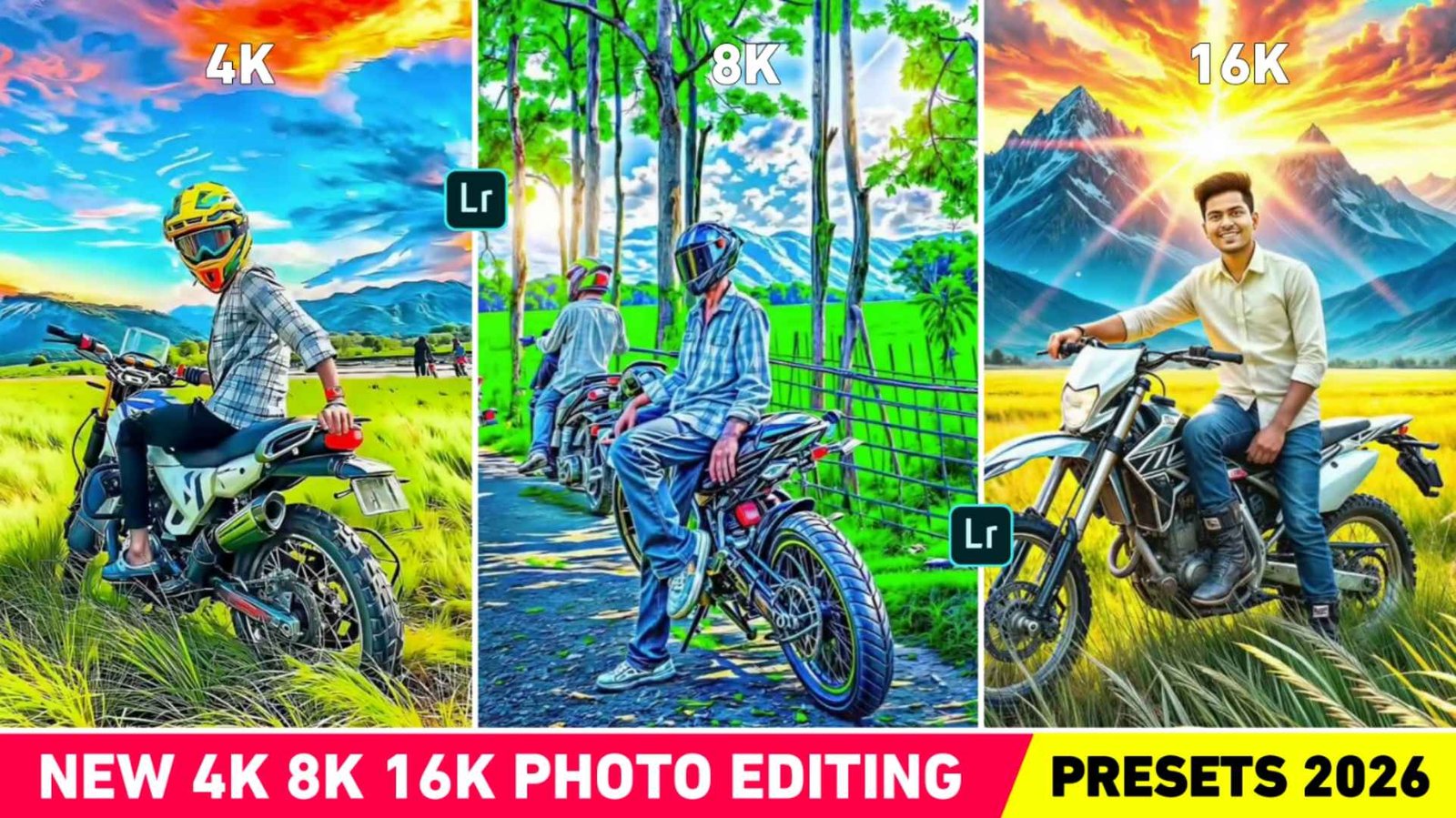
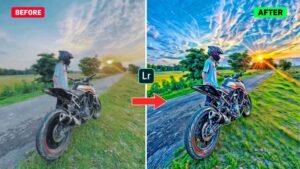
We have shown three types of photos in thumbnail. I have edited all the photos using Lightroom app only. The preset we will share is going to be Dng preset which will have to be made HD by copying its settings in Lightroom app and pasting it on your photo. As soon as you copy and paste the preset settings on your photo in the Lightroom app, your photo will instantly become HDR Look. There will be complete detail in every single thing. Be it in the face or clothes. No matter how much you zoom the photo, its quality will not deteriorate at all. It is possible that these presets may not work well on some photos, so this is all you have to do for it. First you have to apply the preset on your photo. After that, you can make the photo better by customizing it as per your liking using the editing tools given in Lightroom like light color detail. If the face gets spoiled then go to the color tool and select the orange color there and reduce its saturation and increase the Luminous. By doing this the face will become perfect.
Similarly, you can improve the photo by using different color tools. Well, we have shared three to four types of presets in it. If you don’t get good results from one, you will definitely get it from the other.
What To Do If The Presets Don’t Make The Photo HD?
As I already told, we have shared not just one preset but three to four types of presets. If one preset doesn’t work, you can try using another preset. One or the other preset will definitely give good results. If none of the presets work well for your photo. Still, if you want to make your photo HD, then the best AI tool for this will be Krea AI. People mostly use this ai tool to edit their photos in high quality. Keep one thing in mind that Krea AI makes your photo in very high quality due to which sometimes the face in it will not match. So to correct that photo people use PicsArt app. Many times we have made our photo in 4k 8k 16k with krea ai. But sometimes the face in the photo changes completely. That is to say, first try HD your photo using the Lightroom preset provided by us if you do not get a good result. Then you can use Krea AI.
4k 8k 16k Presets
How To Use 4k 8k 16k Photo Editing Lightroom Presets
It is much easier to make photos HD with the help of presets. That’s all that needs to be done for this. We have shared all the presets in it. All have to be saved one by one in your phone. After saving, select your photo with the preset in your gallery. Then click on the share button and send it inside the Lightroom app. After that, open the Lightroom app and first select the preset. Click on the three dot option at the top right side, click on Copy Settings and mark all the tools visible there and then Right Click. Now come to your photo and again click on the three dots on the right side and set Paste there. We will apply the preset to your photo. If the photo looks bad after applying the preset, then correct it as per your choice with the help of editing tool. Whatever preset you have shared inside the Lightroom app. Try using all of them once on your photo. Some preset will definitely work well.
Last Word
Nowadays everyone likes to edit photos very much, so in this article we have shared with you such a preset of Lightroom app with the help of which anyone can make their photo HD through Lightroom app. That too from 4K to 8k. We have given different types of presets in it. Even if someone wants to edit their photo in HDR Look, they can also use this preset. This preset will be the best option to edit the type of photo you are seeing in the thumbnail. So quickly save this preset and try editing your photo and if there is any problem then definitely tell us in the comment box.
FAQ
1. Will The Preset Work Perfectly On Every Photo?
Ans. – Since every photo has different lighting, you will need to edit each one manually after applying the preset.
2. Can It Be In The Mobile?
Ans. – Yes, all the presets we have shared with you are for mobile.
3. What Are 4k, 8k, 16k Lightroom Presets?
Ans. – This is a high-quality color grading preset that gives photos a sharp, cinematic, and detailed look.

I’ve Been editing photos and videos for over 5 years. Here, I share Lightroom Presets, Ai Photo Editing Prompts, Vn Templates, and easy editing tutorials so you can give your photos and videos a professional look. Welcome to the world of creative, high-quality editing