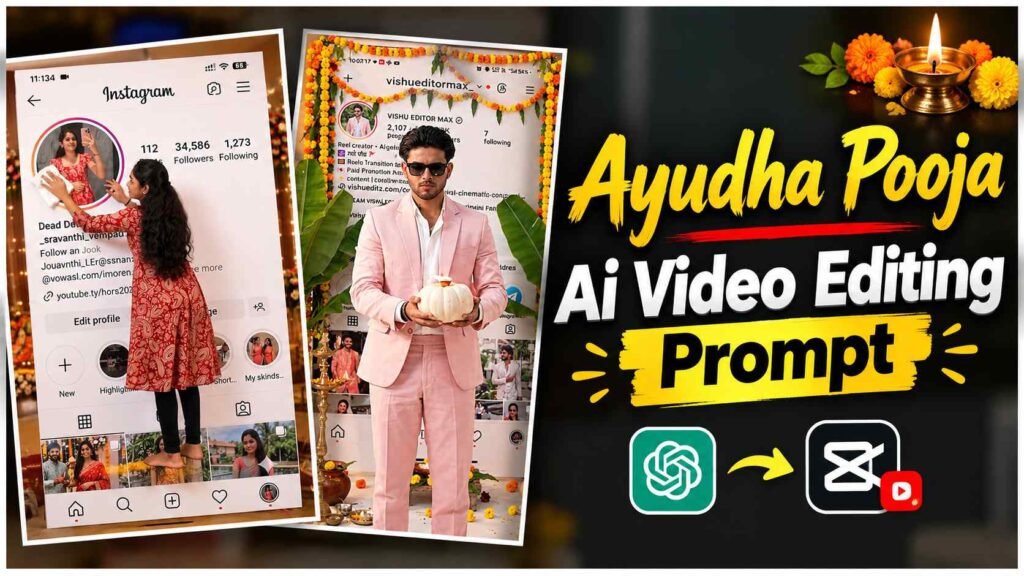
Ayudha Pooja Ai Video Prompt – A unique AI-enabled Ayudha Pooja AI video is currently appearing on Instagram Reels. The video begins with a person’s Instagram profile, followed by a scene that appears to be emerging from the profile’s display. The video then transitions to various cinematic scenes, where the person poses with their Instagram profile and then performs a traditional Ayudha Pooja ritual. All these scenes are created using AI and combined into a single video, giving it a distinct look.
If you’d like to create such a trending AI video using your Instagram profile and photos, this article will explain the entire process. This video can be created for both men and women. First, take a screenshot of your Instagram profile and then create two separate images using Image Prompts in ChatGPT with your photo. Google Flow AI will then create two video clips using those images and the Instagram profile screenshot. Finally, the two clips can be combined in a video editing app to create the final video.
Concept of Instagram Profile AI Video
The main concept of this video is to simulate a real-life scene from an Instagram profile, in which a person appears to be exiting their profile. Initially, a screenshot of the Instagram profile is shown, followed by an AI-generated image showing the person in a creative pose with the same profile. In the second scene, the same person is seen performing puja in a traditional Ayudha Pooja setting. This way, the video seamlessly combines the social media profile and traditional puja scenes.
This video uses two AI images and two AI video clips. The first image is created for the exit scene from the Instagram profile, while the second image is used for the puja scene. Google Flow AI uses both images along with the Instagram profile screenshot to generate separate videos. The overall concept is then created by combining the two videos in the correct sequence. Using a high-quality screenshot and a clear face reference is likely to yield better results.
Here are the Ayudha Pooja AI Prompts
To create this trending video, you’ll need two image prompts and two video prompts. There’s no need to search for all these prompts separately, as they can be found in a single link. The link below contains the prompts for both images and videos. First, use an image prompt in ChatGPT to create the first image, then use a second image prompt for the second image. Then, use different video prompts in Google Flow AI based on the two images.
Ayudha Pooja AI Image Prompts Here
Video Prompt Here
When using these prompts, have a screenshot of your Instagram profile and a clear photo of yourself ready. Use the photo of the person you’re filming, whether male or female, as a reference. After creating both the images from Image Prompts, save them, because these images will be required to generate the video in Google Flow later.
How to create both images with ChatGPT?
First, open your Instagram profile and take a clear screenshot. Make sure the profile photo, username, and other important parts of the profile are clearly visible. Now, open ChatGPT and upload a screenshot of your Instagram profile. Then, upload a photo of the person you want to create an AI video for. Copy the first image prompt from the provided link and paste it into ChatGPT to generate the image. This prompt will create the first creative scene related to the Instagram profile. Once the image is created, carefully review it and save it to your phone.
To create the second image, click the plus icon in ChatGPT and upload the previously saved AI image. Then, copy and paste the second image prompt from the same link. This prompt will create a second Ayudha Pooja scene, showing a person performing the puja. Once the second image is created, save it as well. You will now have two separate AI images—one for the Instagram profile scene and one for the puja scene. These two images will be used within Google Flow AI in the next step.
Create Both Videos with Google Flow AI
First, open Google Flow AI in your phone’s browser and click New Project. Click the image upload option to add the original screenshot of your Instagram profile and the first AI image created with ChatGPT. Copy the first video prompt from the provided link and paste it into Google Flow and click the Send button. The AI will attempt to create a video based on this reference, similar to the scene from the Instagram profile. Once the video is generated, check it and save it to your phone.
To create the second video, open the image upload option in Google Flow AI again. Add the same Instagram profile screenshot and the second Ayudha Pooja image created with ChatGPT. Then, copy and paste the second video prompt from the same link and click the Send button. Once the video is ready, save it to your phone. This way, you’ll have two separate video clips—one from the Instagram profile scene and one from the Ayudha Pooja scene. Keep in mind that Google Flow’s interface and available options may vary, so use the image upload option as needed.
Last Word
Once both video clips are ready, open any video editing app on your phone and import them in the correct order. Place the video from the Instagram profile scene first, followed by the Ayudha Pooja video. Now, adjust the timing of both clips so that the end of the first video and the beginning of the second video naturally connect to each other. You can add transitions, light blur, text, and background music as needed. However, avoid overdoing the effects so that the main scene of the video remains clearly visible.
For best results, use a clear Instagram profile screenshot and a high-quality reference photo from the beginning. Check the person’s face, clothing, and pose in both images created with ChatGPT. In the video generated by Google Flow, also carefully observe the faces, hands and movements. If you notice any discrepancy in any scene, you can recreate the corresponding image or video. Finally, save the video in 9:16 vertical format so that it can be easily used on Instagram Reels and YouTube Shorts. In this way, by creating two images in ChatGPT, creating two videos in Google Flow AI and combining them in a video editing app, your Ayudha Pooja AI Video will be ready.
I’ve Been editing photos and videos for over 5 years. Here, I share Lightroom Presets, Ai Photo Editing Prompts, Vn Templates, and easy editing tutorials so you can give your photos and videos a professional look. Welcome to the world of creative, high-quality editing