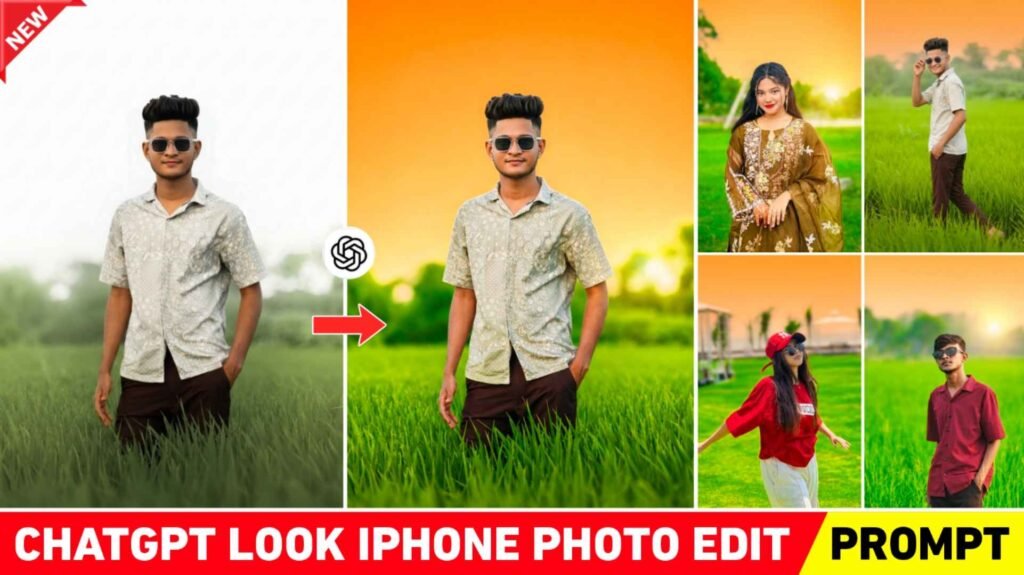
Iphone Editing Prompt – In today’s time, everyone has an Android mobile. And you must know this. No matter how expensive an Android phone we buy, iPhone-like photos are not seen in Android phones. Whenever we click a photo from iPhone, you will see sunset sky yellow tone, all these things added make our photo very attractive. Mostly what we have seen is that people use iPhone only in case of clicking photos because it gives very good photos. But the problem is that not everyone has the budget to buy an iPhone, that is why today I will tell you a method with the help of which you can make the photos clicked from Android phone look like iPhone. Yes, in today’s digital AI era, many such photo editing AI tools have come with the help of which it is now possible to do everything. In this article, with the help of chatgpt, I will tell you how you can give any type of normal photo an iPhone-like look in a single click through prompt. With the help of the prompts that I will share, you can also use them to edit photos of sunset sky.
Full Details Chatgpt Iphone Look Photo Editing
In this, some prompts will be shared to make photos like iPhone. It will work very well on all types of photos. But mostly we have seen. Works better on outdoor photos because in outdoor photos there is sky, it becomes completely sunset look. And we already know that when we make any kind of photo with chatgpt, it edits the photo so well that without even asking anything, it adds such nice details in every photo. Matches the photo with the background. All I mean to say is that chatgpt creates very good photos as compared to other AI tools. Therefore, use the given prompt in chatgpt to create the iPhone photo. If you want, you can also try making a picture using Gemini, but you will not see the results as good as that. In this article we have shared two to three types of prompts. You can try creating photos using both, one for high level iPhone photo editing and the other for normal iPhone like photo editing. To make the photo look like iPhone from the given prompt, use such a photo which is outdoor in which the sky is clearly visible.
Create IPhone Like Photos With Wditing Apps
Yes, we can easily edit photos like iPhone using Lightroom photo editing app. All it takes is the masking tool in your Lightroom app. Because with the help of masking tool we can select the background. You can select Sky. You can do whatever editing you want by selecting the entire subject of your photo. To do iPhone-like photo editing with Lightroom, first open your photo in Lightroom app and first of all click on the Auto tool and adjust the lighting in your photo like Brightness, Contrast, Highlights, Shadow etc. After that click on the masking tool and select the Select Sky option there. First, select the sky. Then open the color tool. Increase the saturation fully. After that, adjust the Hue to a yellow tone. After doing this, click on the masking tool again, select the background and color the background properly. Rest use blur tool, effect tool and Details given in Lightroom. Your photo will be completely edited like iPhone.
Iphone Editing Prompt

How To Create Iphone Look Photo Editing Using Chatgpt Prompts
Chatgpt Is Beneficial For YouTubers
Yes, with the arrival of chatgpt, YouTubers are benefiting a lot. I am saying this because we used to use editing apps like PicsArt, Pixxlab to create thumbnails of YouTube videos. Used to spend hours on it. Now in Chatgpt, by just writing a simple prompt i.e. whatever text they want to create, they can create the thumbnail very easily. You will not believe it. chatgpt creates such good thumbnails that don’t even ask, in recent times I often see content creators using chatgpt to create YouTube thumbnails, Instagram reels cover photos. You just have to specify in the prompt what kind of thumbnail you want to create. What type of text should be there.
Conclusion
All I can say is this: In this article, we’ve explained how you can transform photos taken on your Android phone into an iPhone-like look, using AI. In this article, we’ve shared an Iphone editing prompt that can help you easily edit any photo like an iPhone. You can edit any type of photo clicked from mobile with the given Iphone editing prompt.

I’ve Been editing photos and videos for over 5 years. Here, I share Lightroom Presets, Ai Photo Editing Prompts, Vn Templates, and easy editing tutorials so you can give your photos and videos a professional look. Welcome to the world of creative, high-quality editing